CloudAdvisor incorporates specific components in its user interface. For clarity and consistency, this documentation uses specific terms when describing these components. Knowing these terms and their definitions can help you better understand the documentation provided, better navigate within the CloudAdvisor interface, and could prove useful in describing an issue to HyTrust Support personnel. These terms are described in more detail below:
The CloudAdvisor Home tab contains three areas, Discover, Inventory, and System.
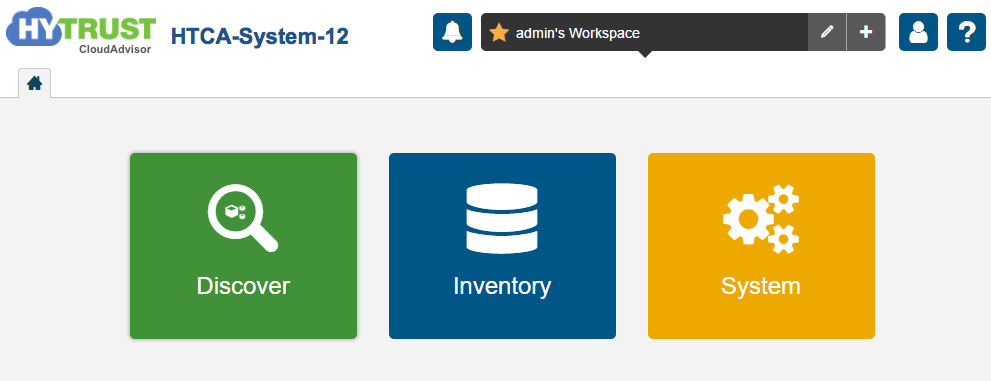
Figure: CloudAdvisor interface areas
Each area categorizes different tasks that you can perform in CloudAdvisor and on any associated data:
Discover — Enables you to discover information about your data. This area includes options for searching content, using rich visualizations to obtain data insights, track user activities, and create CloudAdvisor Insight Profiles. For more information, see Discover.
Inventory — Enables you to manage providers and VMs. For more information, see Inventory.
System — Includes information about creating and using CloudAdvisor Snapshot Schedules to protect your data, enables you to manage system settings, manage roles and user access control, and configure event notification policies for system events. For more information, see System.
The CloudAdvisor interface utilizes a tab structure when isolating different tasks. TheCloudAdvisor interface provides the Home tab by default. It opens a new tab automatically each time you select an option from one of the drawers on the Home tab.
| Note: | Though you can open and close any tabs from the CloudAdvisor main window, you cannot close the Home tab. |
For more information about tabs, see Tab Management.
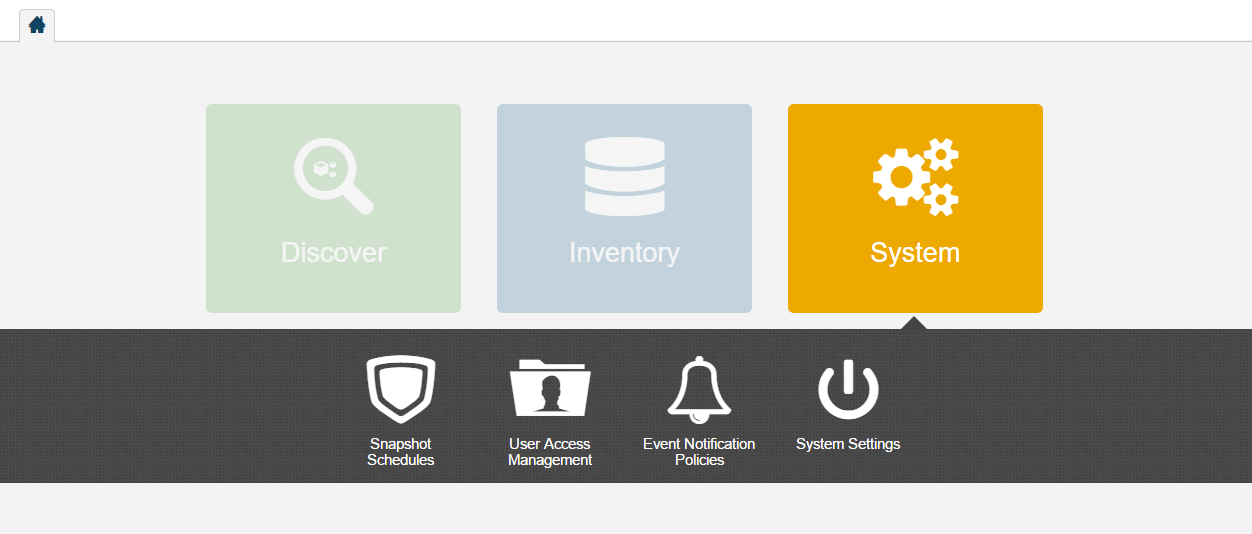
The CloudAdvisor Home tab provides the central location from which you can navigate to all other tabs. Clicking any of the CloudAdvisor areas (Discover, Inventory, or System) on the home tab opens a drawer from which you can choose various options that are specific to the selected area. Clicking any of the drawer options opens a separate tab that provides specific information for that option.
As an example, clicking System on the home tab opens the System drawer.
Figure: CloudAdvisor System drawer
Most tabs are used for configuring the various CloudAdvisor features. However, some tabs provide the ability to monitor CloudAdvisor or user-based and file-related analytics. The different monitoring subject areas are presented as tiles.
Figure: CloudAdvisor tiles
Most tiles are informational. However, some tiles can expand into views by clicking the Expander icon in the top right corner of the tile.
A view is a pop-up inset window. You can identify a view by the fact that, when open, it is contained within the tab from which you launched the view, and by it having a Close button in the upper right hand corner of the view window.
Views can provide enhanced information and configuration options. What actions you can perform using a view depends on the view you access. However, informational views provide the ability to sort and filter information provided.
A legend is a list of categories associated with graphical output in a tab or a view. The categories in a legend appear as small, colored circles and can represent file types, user activities, search terms, and so on, depending on the tab or view in which the legend exists.
Figure: Example legend
Legends are dynamic. In most cases, they show only those categories that are part of the generated output. For example, if your system contains no video files, the video category would not appear in the legend. In addition, by clicking categories in a legend to select or deselect them, you can constrain the resulting output in a tab or view.
