Appendix: Using Microsoft Failover Clusters with HyTrust DataControl
Introduction
In addition to HyTrust failover tools, you can use Microsoft’s Windows Failover Clusters. For an overview of Failover Clusters in Windows Server 2008 R2, go to http://technet.microsoft.com/en-us/library/cc730692.aspx. What follows are specific instructions for HyTrust DataControl implementation of Failover Clusters. These instructions assume a working knowledge of HyTrust DataControl.
Protecting an existing (i.e. in-use) drive G: shared by winhost1 and winhost2: Part One
- Say you are currently using drive
G:for your CIFS export from your Windows failover cluster nodes winhost1 and winhost2. Also sayG:on winhost1 appears as hard disk 3 and on winhost2 it appears as hard disk 4. - Disconnect all existing clients that are currently using this share. Confirm that clients have indeed unmapped this drive disconnected by running net session /list from the command prompt of both win1 and win2. It should not show any existing sessions.
- On both winhost1 and winhost2 open a command prompt as Administrator and run
hcl statusto get information about state of your connection with the KeyControl node, the number of devices available to encrypt etc. - On a windows failover cluster, the shared disk is owned by only one node at a time. Say winhost1 is the current owner. On winhost1, run
hcl encrypt G:from the command prompt to stamp a unique GUID onG: - Run
hcl statuson both nodes again. You should see the same GUID being reported for hard disk 3 on winhost1 and for hard disk 4 on winhost2. - On winhost1, run
hcl encrypt G:from the command prompt to begin encrypting existing data on the drive.
NOTE:- Depending on the size of the drive, this will take a few minutes to complete.
- During the encryption,
G:will no longer be visible and the CIFS export service will show up asofflinein the failover cluster manager. - Once
hcl encrypt G:completes, its contents will be visible. G:should now also show up under the disks owned by winhost1 in the KeyControl node.
- Run
hcl detach -aon winhost1. This will unmap driveG:from winhost1 in preparation for the next step. - Use the failover cluster manager to move the CIFS service (and thus ownership of
G:) from winhost1 to winhost2. Note thatG:will appear to be unformatted to winhost2 and you will be prompted to format it. Ignore this prompt. - On winhost2, run
hcl add G:. This should complete very quickly sincehclrecognizes that this is an encrypted disk whose key is already registered with the KeyControl node. G:should now be readable on winhost2.
Protecting an existing (i.e. in-use) drive G: shared by winhost1 and winhost2 : Part Two
- The initial setup of
G:on winhost1 and winhost2 was done in Part One, above. Now we set things up so that failover and failback can happen automatically. - Take a look at the vbscript (
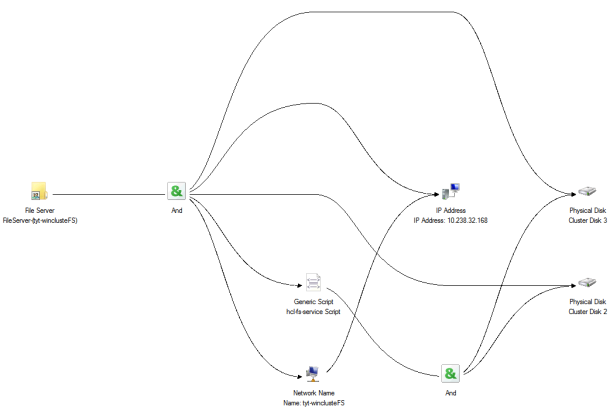
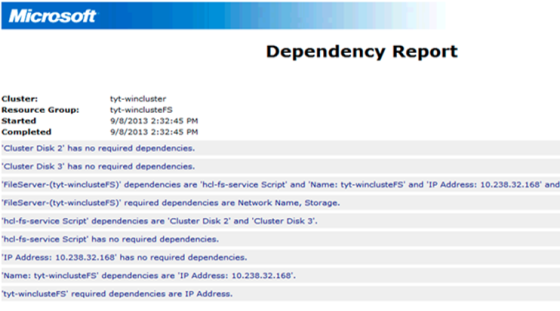
hcs-fs-service.vbs) that we have provided. That, in conjunction with the two images below, show how the dependencies are structured. First the diagrams: - The script is responsible for getting (via online routines) and releasing (via offline routines) keys from the KeyControl node for devices that are protected.
- We want the online routine in this script to be called before the CIFS service is brought online (the online routine calls
hcl attach -a, which fetches keys for all devices under encryption on that node). - We want the offline routine in this script to be called after the CIFS service is taken offline (the offline routine calls
hcl detach -awhich releases keys for all devices under encryption on that node). - We want the cluster disk to be brought online for a node before the online part of this script is called. NOTE: the online routine of this script also calls
hcl updateconfig, which is required to handle cases where Windows changes the order of disks on the system (typically this happens across reboots when there are multiple iSCSI targets configured on the same host). -
Copy the script
hcs-fs-service.vbsto the same location on both nodes winhost1 and winhost2. - Add the script as a resource to the FS service via the failover cluster manager.
- In the dependency properties for this
vbsscript, specify that the cluster diskG:is to brought online before this script is brought online.
Testing Windows Failover Clustering with HyTrust DataControl
- Let the clients now mount the exported CIFS share.
- Now try bringing the fs service online and offline a few times on one of the nodes. Check the contents of
C:\fsonline.txtto see if the online function executed correctly. It should read something like:updateconfig succeeded Encrypted device \Device\Harddisk3\Partition1 attached; decrypted contents visible at G: - Similarly, check the contents of C:\fsoffline.txt to see if the
offlinefunction executed correctly. It should read something like:Encrypted device \Device\Harddisk3\Partition1 detached; decrypted contents no longer visible - Using Failover Manager, try moving the fs service over to the other node. Again, check the contents of
C:\fsofflineon the source node andC:\fsonlineon the target node to ensure that everything worked. - Try rebooting a node and confirming that the fs service smoothly fails over to the new node.
Protecting a New Drive, H:, Shared by winhost1 and winhost2
- In this example, assume that you do not care about preserving existing data on drive
H:. You are simply adding a new drive. -
Follow the same procedure as above with one exception - on the first node, run
hcl add H:(instead ofhcl encrypt H:). This action will format the drive with a new NTFS file system and then make it available as an encrypted drive.