Viewing the Details for a VM
- Log into the KeyControl webGUI on any node in the cluster using an account with Cloud Admin privileges.
- In the top menu bar, click Cloud.
- Click the VMs tab.
-
To view the details for a VM, click the Expand button (>) at the end of the row.
KeyControl displays the details for the VM along with a VM-specific Actions button that allows you to manage the selected VM without affecting other VMs registered with KeyControl.
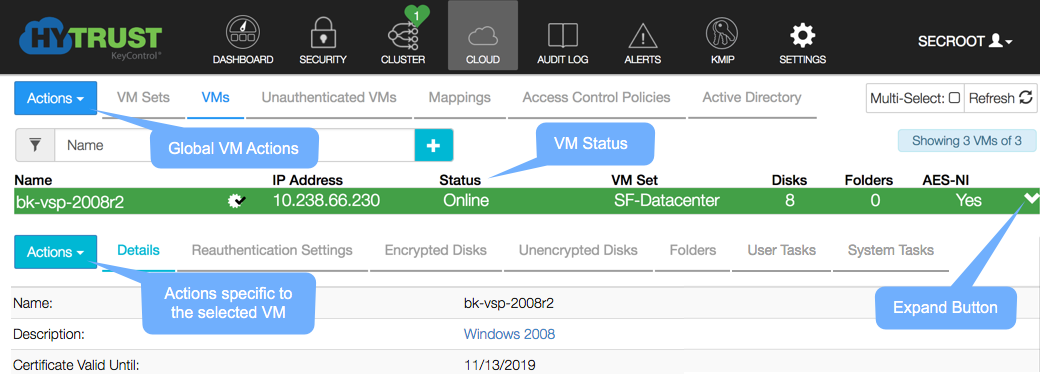
VM Status Information
The VM Status can be one of the following:
- Not registered — The Policy Agent software is installed but the VM has not yet been registered with KeyControl.
- Connected — The VM can communicate with KeyControl and everything is running normally.
- Could not connect — KeyControl is not reachable. If this condition continues, the VM will need to be re-authenticated with KeyControl when communication is re-established.
- Need to update certificate — The certificate for the is VM is no longer valid and should be updated.
- Reauth needed — The VM needs to be re-authenticated.
- Virtual Machine not authenticated — VM permissions have been revoked from KeyControl. To fix this issue, see Reactivating a Revoked Disk.
- Identity verification failed — Permissions are not available because the VM heartbeat has timed out or its IP address or hardware signature has changed. This can occur if you have changed the IP address on a VM or copied the VM to a new server.
- Unknown error from KeyControl cluster — An unknown error has occurred. Please contact HyTrust support if you see this message.
VM Details Area
The VM Details area contains the following tabs:
- Details — Shows the basic information about the VM including its certificate status, rekey interval, and the version of the HyTrust DataControl Policy Agent installed on the VM.
- Reauthentication Settings — Shows whether KeyControl requires you to reauthenticate the VM when its IP address changes, its hardware signature changes, or it reboots.
- Encrypted Disks — Shows the status of the VM's encrypted disks, including both regular disks and Windows folder mounts.
- Unencrypted Disks — Shows the disks and Windows folder mounts available for encryption.
- Folders — Shows the FSID information for the VM.
- User Tasks — Shows the tasks that were started by a KeyControl user. This list includes any manually-initiated disk encryption or decryption tasks.
- System Tasks — Shows the tasks that were started automatically by KeyControl. This list includes any auto encrytion tasks for the VM.
|
Follow us: |

