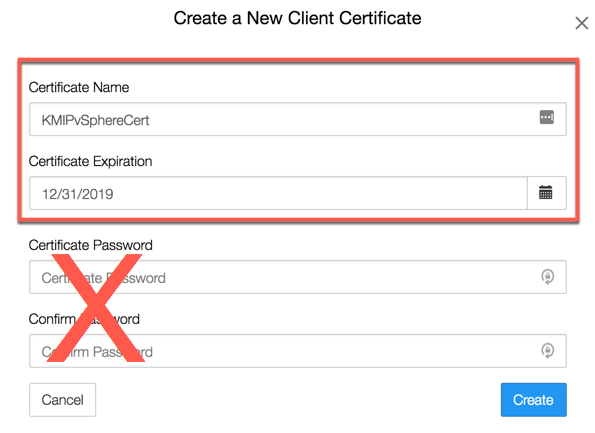
In the Create a New Client Certificate dialog box:
- Enter a name in the Certificate Name field.
-
Set the date on which you want the certificate to expire in the Certificate Expiration field. If the certificate expires, communication between vSphere and KeyControl will be disrupted until a new certificate is uploaded.
Important: Do not enter a password for the certificates. Due to a vSphere limitation, you cannot upload encrypted certificates. The following example creates a certificate bundle called KMIPvSphereCert with a certificate expiration date of December 31, 2019.
- Click Create.
<username_datetimestamp>.zip, which contains a user certification/key file called <username>.pem and a server certification file called cacert.pem.<username>.pem file available to upload into vCenter, as described in Creating the KMS Cluster in vSphere. vSphere does not require the cacert.pem file.
