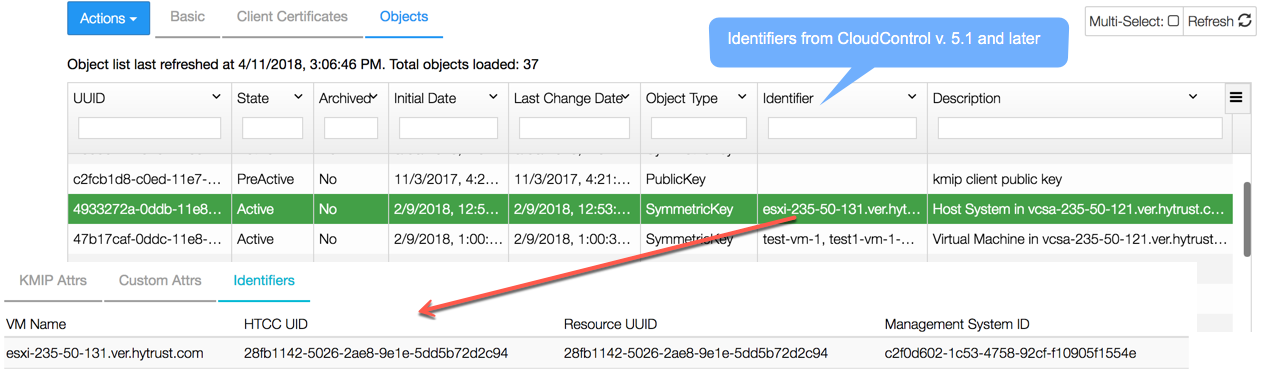
If you want to use the BoundaryControl feature for VMs in a Cloud VM Set or you want to link KMIP-client VMs to the KMIP objects they create in the KeyControl KMIP server, you need to link KeyControl to one or more HyTrust CloudControl servers. CloudControl can then be used to configure rules and policies for the VMs in the associated Cloud VM Set while the Inventory feature tracks which client VMs go with which KMIP objects.
Figure: KeyControl KMIP Server Objects with the CloudControl Identifier
Each Cloud VM Set in KeyControl can be linked to a specific CloudControl server, allowing you to select the best CloudControl server for the VMs in each Cloud VM Set.
| Note: | If the SSL certificate for CloudControl expires or is changed, you need to create a new App Link as described below. Then, for each Cloud VM Set that uses the BoundaryControl feature, you need to change the Boundary Control property so that it points to the new App Link. For details, see Changing Cloud VM Set Properties. |
Before You Begin
Make sure that VMware Tools is installed on each VM that will be associated with the a BoundaryControl-enabled Cloud VM Set. While any VMware-supported version of the tools will work, we recommend that you keep VMware Tools up to date.
Procedure
If you are using CloudControl version 5.1 or later, log into CloudControl using an account with AppLink Management privileges and do the following:
Log into the KeyControl webGUI on any node in the cluster using an account with Security Admin privileges.
In the Create a New Link dialog box, specify the options you want to use.
 Options
|
Field |
Description |
|||
|---|---|---|---|---|
|
Host |
The hostname or IP address and port number for the CloudControl server, in the form |
|||
|
Protocol |
The protocol should match the version of CloudControl that you are using. |
|||
|
SSL Verify |
If Yes, the certificate for the CloudControl server is verified every time contact between KeyControl and CloudControl is established. If the KeyControl certificate changes, the connection will fail. If No, the CloudControl server certificate is only checked when the initial connection is established. The default is Yes.
|
|||
|
One Time Code |
If Protocol is set to HTCC 5.1 or higher, enter the App Link code generated in CloudControl. |
|||
|
Username Password |
If Protocol is set to HTCC 5.0 or HTCC 4.6, enter the username and password for a CloudControl user account with the ASC_BCAdmin user role. |
If desired, repeat this procedure to add a link to another CloudControl server.
What to Do Next
If you are enabling the BoundaryControl feature for the first time, create one or more Cloud VM Sets with the BoundaryControl feature enabled and then add the desired VMs to one of those sets. For details, see Creating a Cloud VM Set.
If you want to use this App Link for an existing Cloud VM Set that already has the BoundaryControl feature enabled, you can select it from the Boundary Control drop-down list in the Details area for the Cloud VM Set. For details, see Changing Cloud VM Set Properties.
|
v 4.2.1 |
Copyright © 2018 HyTrust, Inc. All Rights Reserved. |
Follow us: |

