Right-click on the disk and select one of the following:
- Add and Format — Registers the disk with KeyControl and reformats it using NTFS. Any existing data on the disk is lost. This is equivalent to the
hcl addcommand with all defaults selected. -
Add and Encrypt — Registers the disk with KeyControl and encrypts the data that already exists on the disk. This is equivalent to the
hcl encryptcommand with all defaults selected.If the disk is sparse, DataControl only encrypts the allocated blocks to ensure that the sparseness remains. Sparse is not available for
C:drives.
After you select the option you want to use, confirm the selection at the prompt. DataControl displays a status message while the encryption is in process and updates the disk list in the HyTrust Policy Agent GUI while it is running.
For example, the following screenshot shows that the folder mount C:\data is encrypted and attached to KeyControl, while the C: disk is 70.05% encrypted.
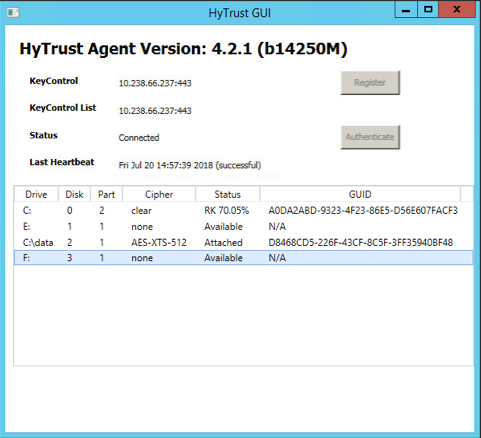
The encryption proceeds in the background and you can continue to use the disk while it is being performed. If you want to change the encryption speed, see Changing the Encryption/Decryption Speed on Windows.

