Recovering Access to Cryptographic Security Platform Vault
There are times when you will need to recover your Cryptographic Security Platform Vault system, such as when you increase the number of CPUs allotted to a Cryptographic Security Platform Vault server, change the network hardware address, migrate Cryptographic Security Platform Vault to a different host, or restore from a backup to a newly-created VM. The system recovery process prevents rogue administrators from making unauthorized changes to, or copies of, Cryptographic Security Platform Vault disks.
-
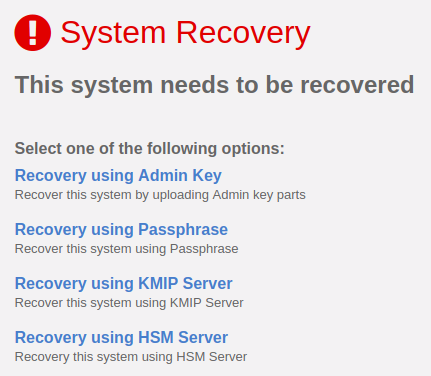
When you make a change that affects the hardware signature, the Cryptographic Security Platform Vault webGUI displays the System Recovery dialog box.

-
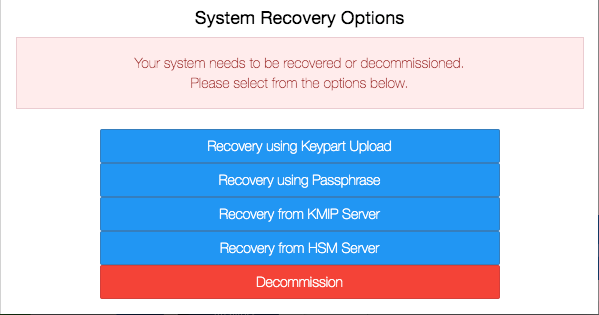
For backup/restore, the Cryptographic Security Platform Vault webGUI displays the System Recovery Options dialog box.

Procedure
-
Select the method you want to use to recover your system. The options are:
Option
Description
Recovery using Keypart Upload
Allows you to upload the minimum number of required Admin Key parts that were sent to the Security Admins in the system. If you select this option, the webGUI displays the Recover Admin Key page.
To upload a part, click Browse and select the appropriate
recovery_keyfile. The Browse button should change to show the name of the selected file. When the correct file is displayed, click Upload file.Make sure that all Admin Key parts you upload have the same generation count. This information can be found in the email accompanying the Admin Key part. For details, see Admin Keys.
When the required number of parts have been uploaded, Cryptographic Security Platform Vault recovers the system and displays the Recovery Success message. Click Proceed to return to the Cryptographic Security Platform Vault login page.
Recovery using Passphrase
Allows you to recover your system when you are using passphrase-based authentication. If you select this option, the webGUI displays the Recovery Passphrase page. Enter your passphrase and click Recover. For more information, see Startup Authentication.
Recovery from KMIP Server
Allows you to get an Admin Key stored on a KMIP server. The Admin Key must already be stored on this server for this option to work.
Recovery from HSM Server
Allows you to get the Admin Key from an HSM server. The Admin Key must already be stored on the HSM server for this option to work. If you select this option, the webGUI displays the HSM Recovery page where you can specify the following:
- Partition Label, HA Group Name, or SoftCard Name
- Partition, Crypto Officer (CO) password, or SoftCard password
Decommission
If you want to decommission your Cryptographic Security Platform Vault system, see Decommissioning a Cryptographic Security Platform Vault Node.
- If there are multiple Cryptographic Security Platform Vault nodes in the cluster, re-join those nodes with the node you just recovered. For details, see Joining or Re-joining a Cryptographic Security Platform Vault Cluster.